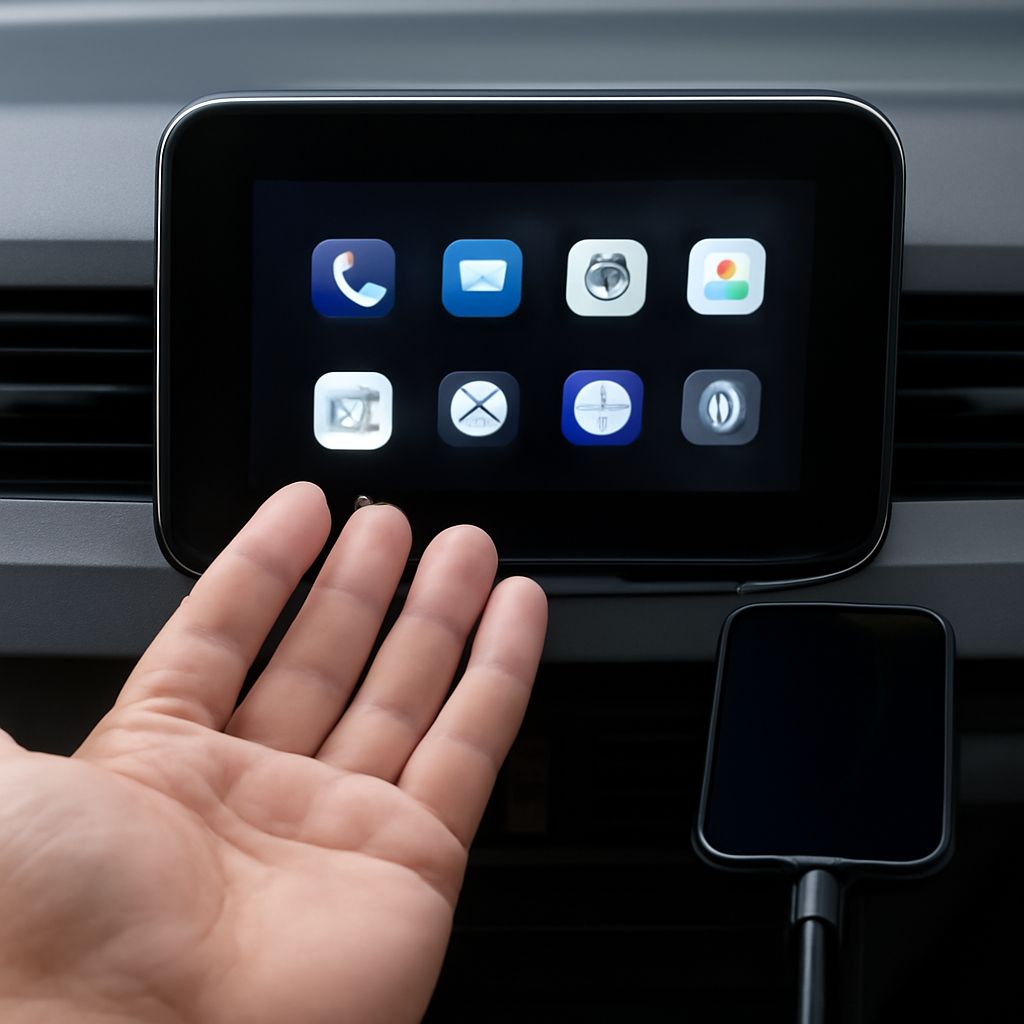
Most drivers want their phone integrated with the car audio system before they leave the driveway. Knowing how to connect phone to car correctly the first time avoids fumbling with settings in traffic. Whether the goal is hands-free calling, music streaming, or navigation through the infotainment screen, the method depends on what the car supports and what the phone can do.
The most common method is to connect phone to car using Bluetooth, which works without any cables and supports both audio and calling functions. Connecting phone to car through USB adds charging and often unlocks platform-specific projection like CarPlay or Android Auto. Other options, including connect bluetooth to car for dedicated audio only or a bluetooth phone to car system for hands-free calls, offer more limited but still useful integration depending on the vehicle’s age and feature set.
How to Connect Phone to Car: The Basics
Checking Your Car’s Audio System
Before pairing anything, identifying what the car supports saves time. Older systems may only have Bluetooth for audio with no phone integration. Newer systems support Bluetooth profiles for both audio streaming and hands-free calling simultaneously. Some systems list supported connection methods in the settings menu under “Devices” or “Phone.” The owner’s manual specifies which profiles, such as A2DP for audio and HFP for calls, are active.
iPhone vs Android Differences
iPhones connect to CarPlay via USB cable on most vehicles, though wireless CarPlay is now common on newer platforms. Android phones use Android Auto, which also works via USB or wirelessly on compatible head units. Both systems mirror key phone functions on the infotainment screen and allow voice control through the phone’s assistant. Knowing which platform the phone runs narrows the connection options before opening any menus.
Connect Bluetooth to Car: Step-by-Step
Enabling Pairing Mode
To connect bluetooth to car systems, open the car’s infotainment menu and navigate to Bluetooth settings. Select “Add new device” or “Pair device.” The system enters discovery mode for a set period, typically two minutes. On the phone, open Bluetooth settings and scan for available devices. The car’s name appears in the list; selecting it initiates the pairing process. A PIN may appear on one or both screens for confirmation.
Troubleshooting Failed Connections
If the phone and car have been paired before but stopped connecting, clearing the pairing from both devices and starting fresh usually resolves the problem. Interference from other paired devices can prevent an automatic connection; removing old or unused devices from the car’s memory helps. Software updates on either the phone or the head unit occasionally change Bluetooth behavior and may require re-pairing after installation.
Connecting Phone to Car via USB and Aux
Connecting phone to car through a USB cable provides a stable, wired connection that avoids Bluetooth dropouts and charges the phone simultaneously. USB-A to Lightning cables work for iPhones; USB-C cables are standard for most current Android devices and newer iPhones. The cable must be a data cable, not a charge-only cable, for CarPlay or Android Auto to initialize.
Aux input connections, using a 3.5mm headphone cable, transmit audio only with no phone control through the infotainment screen. This works on any vehicle with an aux port regardless of platform compatibility and is useful as a fallback when Bluetooth pairing fails or when the system does not support CarPlay or Android Auto.
Bluetooth Phone to Car for Calls and Music
A bluetooth phone to car connection for hands-free calling uses the Hands-Free Profile, which routes the phone microphone through the car’s built-in microphone and plays the call through the speakers. Call quality depends on the car’s microphone placement and noise cancellation processing. For music streaming, the Advanced Audio Distribution Profile handles audio separately. Most modern systems run both profiles at the same time, allowing a call to interrupt music and resume playback automatically after the call ends.
Setting the car as the preferred bluetooth phone to car device on the phone’s Bluetooth list ensures automatic connection each time the vehicle is started. Some phones allow setting connection priority when multiple paired devices are nearby, which prevents the phone from connecting to a home speaker instead of the car.
When Wireless Projection Is the Better Option
Wireless CarPlay and wireless Android Auto remove the cable entirely while still providing full projection of maps, music, and calls on the infotainment screen. These require a compatible head unit and a phone running recent enough software to support wireless projection. The phone must be on the same Wi-Fi network generated by the car’s infotainment system during setup, which pairs once and reconnects automatically on subsequent trips.
Wireless projection generates more phone heat than a wired connection and may drain the battery faster without a simultaneous charging cable. For long trips, running a wireless projection alongside a cable charger handles both issues.
Key takeaways: The right way to connect phone to car depends on the car’s supported profiles and the phone’s platform. Bluetooth pairing handles most everyday use cases, while USB and wireless projection unlock full screen integration. Clearing old pairings and keeping software current resolves most connection problems quickly.